> For the complete documentation index, see [llms.txt](https://docs.formsort.com/llms.txt). Markdown versions of documentation pages are available by appending `.md` to page URLs; this page is available as [Markdown](https://docs.formsort.com/css-and-advanced-styling/custom-css-overrides.md).
# Custom CSS overrides
Using CSS directly to style form layout and components
The style settings available within the theme editor are mostly simple wrappers around the CSS properties that are applied to the HTML elements rendered by Formsort. In simple terms, the options you see in the theme editor are easy-to-use controls for changing the appearance of your forms.
If you'd prefer to use CSS syntax directly to style your forms, you can do so by heading to **Theme > General > Content area > Custom CSS** and entering valid CSS rules there.
{% hint style="info" %}
CSS overrides are an escape hatch! Please use our theme editor tools as much as possible.
{% endhint %}
## Guide for use
### **Targeting specific groups and steps**
You should first add ids to the steps and groups you want to customize - see our [step id](/creating-flows/building-a-new-flow/steps.md#step-id) and [group id](/creating-flows/building-a-new-flow/organizing-using-groups.md#group-id) documentation for more details.
After setting ids, you can use `data-current-step-id` and `data-current-group-id` attributes to target those steps and groups:
```css
[data-current-group-id="contact details"] .fs__inputInner {
border-radius: .5em;
}
[data-current-step-id="final step"] h2 {
font-weight: bold;
}
```
{% hint style="info" %}
### **Targeting components**
When writing custom CSS rules, please use the supported classnames listed in the [Class Reference](#class-reference) section below to target specific component types and their elements.
* **Don't** use random-seeming classnames or IDs you may find within the Formsort HTML structure. These should be considered implementation details and are subject to change at any time.
* **Don't** use highly-nested selectors. We may, from time to time, change the DOM structure of layouts and components. Highly-nested selectors are brittle and subject to breaking when this happens.
{% endhint %}
***
## Classname reference
### Step layout Overrides
`.fs__stepContent`
This component is the container that wraps step content, question and informational blocks. It is a good choice to override some alignment, padding and font properties that effect whole step.
For example, if you want to change color of labels in a step, you could use this snippet.
```css
.fs__stepContent label {
color: cornflowerblue;
}
```
You should not override background color or image in this class name. As you can see in the image below, it can have margins around. We'll add `fs__step` later so that you can override the whole page styles.
***
### Question and Component Overrides
### Comparison cards
`.fs__comparison-question`
Targets the comparison card `div`. Can be used to set the alignment and justification of the comparison cards in their row.
`.fs__comparisonCard`
Targets the comparison card container. You can set overrides for components within the card such as font, alignment etc. Also you can use this class name to set gradient backgrounds and adjust positioning like margins and paddings.
The card content consists of 3 parts: **title**, **body**, and **action containers**:
* `.fs__comparisonCardTitle` to style title section.
* `.fs__comparisonCardBody` to style body section.
* `.fs__comparisonCardAction` to style action button section.
Comparison card sections
To customize `highlighted` and `selected` states, you can use `.fs__highlighted` and `.fs__selected` class names, e.g.
***
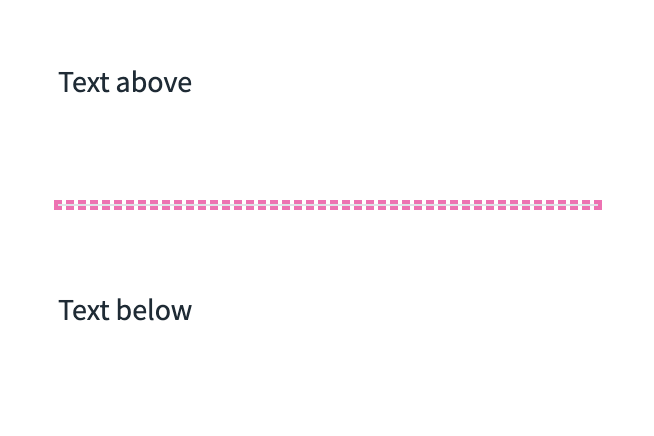
### Dividers
`.fs__divider`
You can set divider color with `background-color`, height, margins, etc.
***
### Select component
#### Buttons
`.fs__sb-container`
Targets the entire Select component wrapper. The Select button container uses the `display: flex` property to order the container.
* Use to style all select questions that are using buttons.
* Use to override the layout of a specific Select question (in conjunction with [step targeting](#targeting-specific-groups-and-steps)).
`.fs__sb-checkmark`
Use this to target select buttons that use checkmarks.
`.fs__sb-image`
Use this to target select buttons that use images.
#### Dropdowns
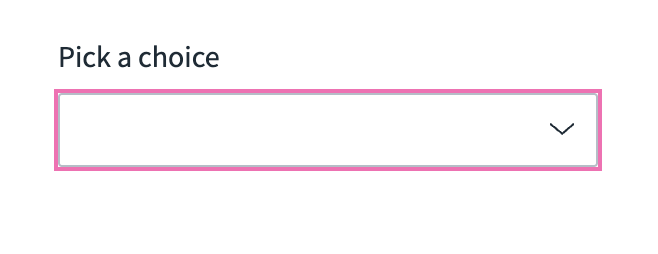
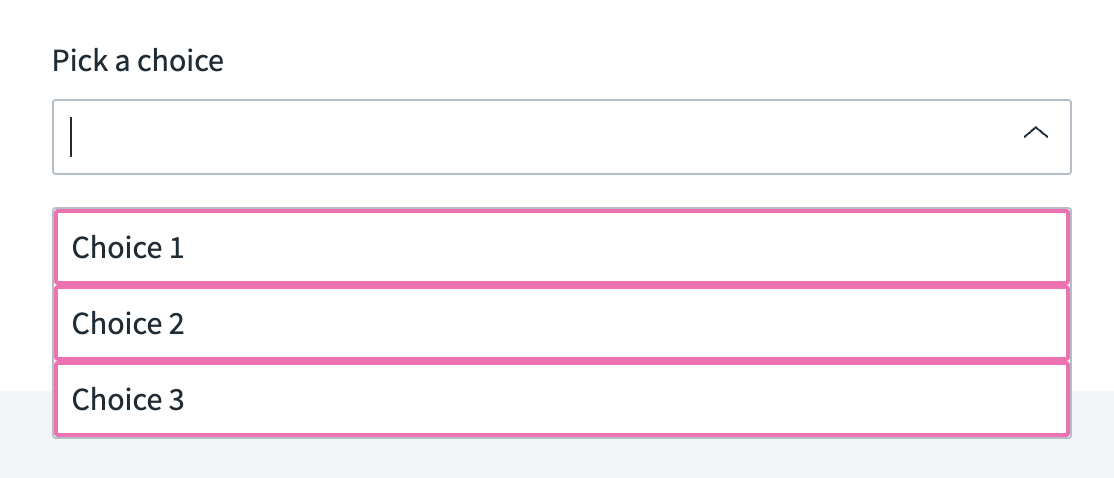
When a select question is turned into a dropdown, the dropdown will consist of 3 parts: **container**, **list**, and **list items**.
You can use `.fs__dropdown-container` to apply style overrides to both input and list, such as text alignment and font style. To drill down to the dropdown list and items, you can use `.fs__dropdown-list` and `.fs__dropdown-list-item`.
```css
.fs__dropdown-container {
font-weight: bold;
text-align: center;
}
.fs__dropdown-list {
margin-top: 24px; /* more space between input and list */
background-color: lightyellow;
}
.fs__dropdown-list-item {
margin-bottom: 8px;
padding: 4px 8px;
}
```
`.fs__dropdown-container`
`.fs__dropdown-list`
`.fs__dropdown-list-item`
To customize `highlighted`, `selected` and `disabled` styles of list items, you can use common Formsort class names: `.fs__highlighted`, `.fs__selected` and `.fs__disabled`.
```css
.fs__dropdown-list-item.fs__highlighted {
border-color: deepskyblue;
}
.fs__dropdown-list-item.fs__selected {
background-color: mediumpurple;
color: white;
}
```
***
#### Text inputs
For most of input styles you can use `.fs__inputInner`. Use `.fs__inputWrapper` for margins and widths.
```css
.fs__inputInner {
background-color: aquamarine;
padding: 8px;
...
}
.fs__inputWrapper {
margin-bottom: 16px;
max-width: 80%;
}
```
For input prefixes and suffixes, you can use `.fs__inputPrefix` and `.fs__inputSuffix`.
```css
.fs__inputPrefix {
padding-right: 24px;
}
.fs__inputSuffix {
font-style: italic;
}
```
Just like in plain CSS, you can use pseudo-classes to customize input states like `focus`, `hover`, `disabled` and `invalid`.
```css
.fs__inputInner:hover, .fs__inputInner:focus {
background-color: purple;
}
.fs__inputInner:invalid {
background-color: rgba(255, 0, 0, .2);
}
```
### Styling beyond the basics
With custom CSS, you can go beyond simple styling and introduce creative visual effects.\
Here’s an example that adds a smooth radial gradient to your step backgrounds using an embedded SVG:
```css
html, body, form {
background-image:
url("data:image/svg+xml,%3Csvg width='1240' height='1128' viewBox='0 0 1240 1128' fill='none' xmlns='http://www.w3.org/2000/svg'%3E%3Crect width='1500.67' height='1886.79' transform='matrix(1 0 0 -1 -261 1421.79)' fill='url(%23paint0_radial_14082_2512)'/%3E%3Cdefs%3E%3CradialGradient id='paint0_radial_14082_2512' cx='0' cy='0' r='1' gradientUnits='userSpaceOnUse' gradientTransform='translate(-556.247 342.428) rotate(11.9757) scale(2041.31 603.311)'%3E%3Cstop offset='0.186517' stop-color='%2305378C'/%3E%3Cstop offset='0.235037' stop-color='%23115FD1' stop-opacity='0. 890016'/%3E%3Cstop offset='0.422887' stop-color='%2342A5F5' stop-opacity='0.45'/%3E%3Cstop offset='0.90625' stop-color='white' stop-opacity='0'/%3E%3C/radialGradient%3E%3C/defs%3E%3C/svg%3E"),
radial-gradient(74.49% 74.49% at 50% 100%, #fff 0, hsla(0,0%,100%,0) 100%);
background-position: center top, bottom;
background-repeat: no-repeat;
background-size: cover, auto;
}
```
---
# Agent Instructions
This documentation is published with GitBook. GitBook is the documentation platform designed so that both humans and AI agents can read, navigate, and reason over technical content effectively. Learn more at gitbook.com.
## Querying This Documentation
If you need additional information that is not directly available in this page, you can query the documentation by asking a question.
Perform an HTTP GET request on the following URL with the `ask` and `goal` query parameters:
```
GET https://docs.formsort.com/css-and-advanced-styling/custom-css-overrides.md?ask=&goal=
```
`ask` is the immediate question: it should be specific, self-contained, and written in natural language.
`goal` is what the user is ultimately trying to achieve, the reason they need the answer. Sharing it helps GitBook give you a better, more relevant answer. A goal is most helpful when it describes the outcome the user wants rather than restating the question. For example, with `ask=how do I create an API token`, a goal like `automate deployments from our CI pipeline` lets GitBook tailor the answer to that use case.
The response will contain a direct answer to the question and relevant excerpts and sources from the documentation.
Use this mechanism when the answer is not explicitly present in the current page, you need clarification or additional context, or you want to retrieve related documentation sections.